
Clearing your cookies / history will resolve errors when signing in to certain services that use single sign on.
Step 1
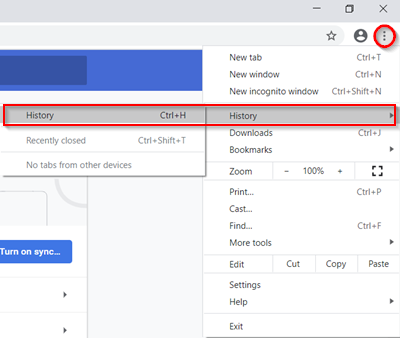
In Google Chrome, select the three dots in the top right and select History.
Alternatively CTRL + H
Step 2
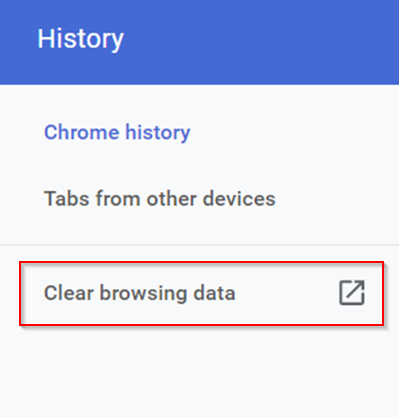
On the left-hand side, select Clear browsing data.
Step 3
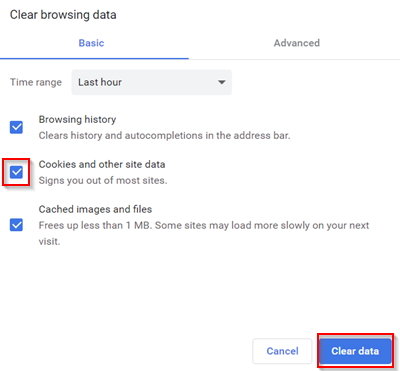
Select a time range and make sure Cookies and other site data is ticked. Select Clear data.
Step 4
Sign in to the service that wasn't working previously.
If you still can't sign in to a service, select All Time from the Time Range drop-down menu.