
Your device will be enrolled into Microsoft Intune which will allow all of the Sacred Heart College apps to be installed automatically.
Step 1
Click the Mac Enrollment button.
Step 2
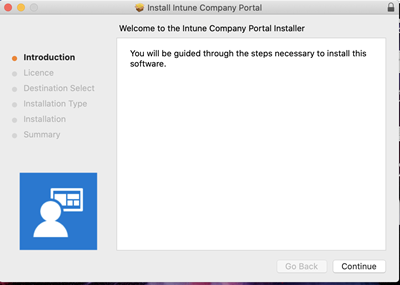
When the installer opens, select Continue.
Step 3
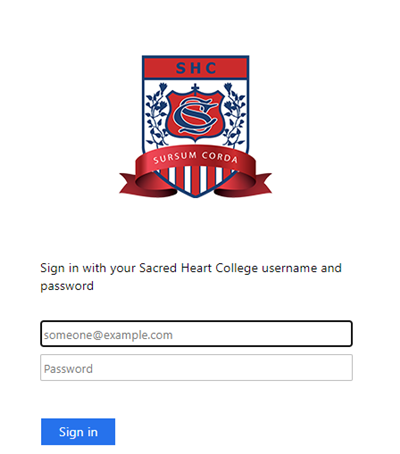
Open the Company Portal app and click Sign In using your Sacred Heart College email address and password.
Step 4
Click Begin and accept the privacy statement by clicking Continue.
Step 5
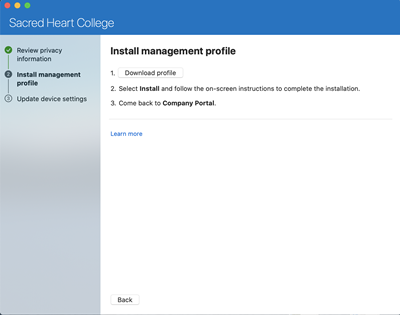
On the Install management profile screen, select Download profile.
Step 6
Your device's system preferences will open. Select Install and then select Install again.
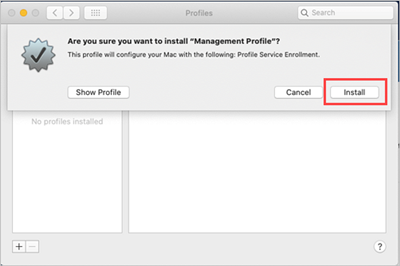
If required, enter your device username and password.
Step 7
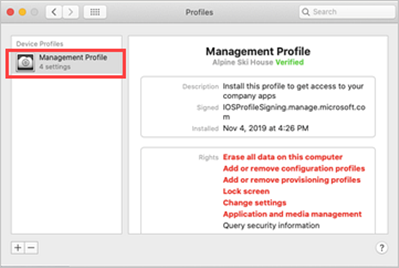
Once the profile is installed, it will appear in the profiles list under Management Profile.
Step 8
When setup is complete, select Done.
Leave your device connected to the network to finish installing all the apps automatically